
Enable online payment
Once Salonify Payments is connected, online payment lets customers pay (or leave a deposit) by card while they book — money lands before they ever walk in. You decide whether paying online is optional or required, which directly affects your no-show rate and cash flow.
How to set it up
- 1
Confirm Salonify Payments is connected
The online-payment switch only appears once Salonify Payments shows the green 'charges enabled' status. If it's greyed out, finish Connect Salonify Payments first.
- 2
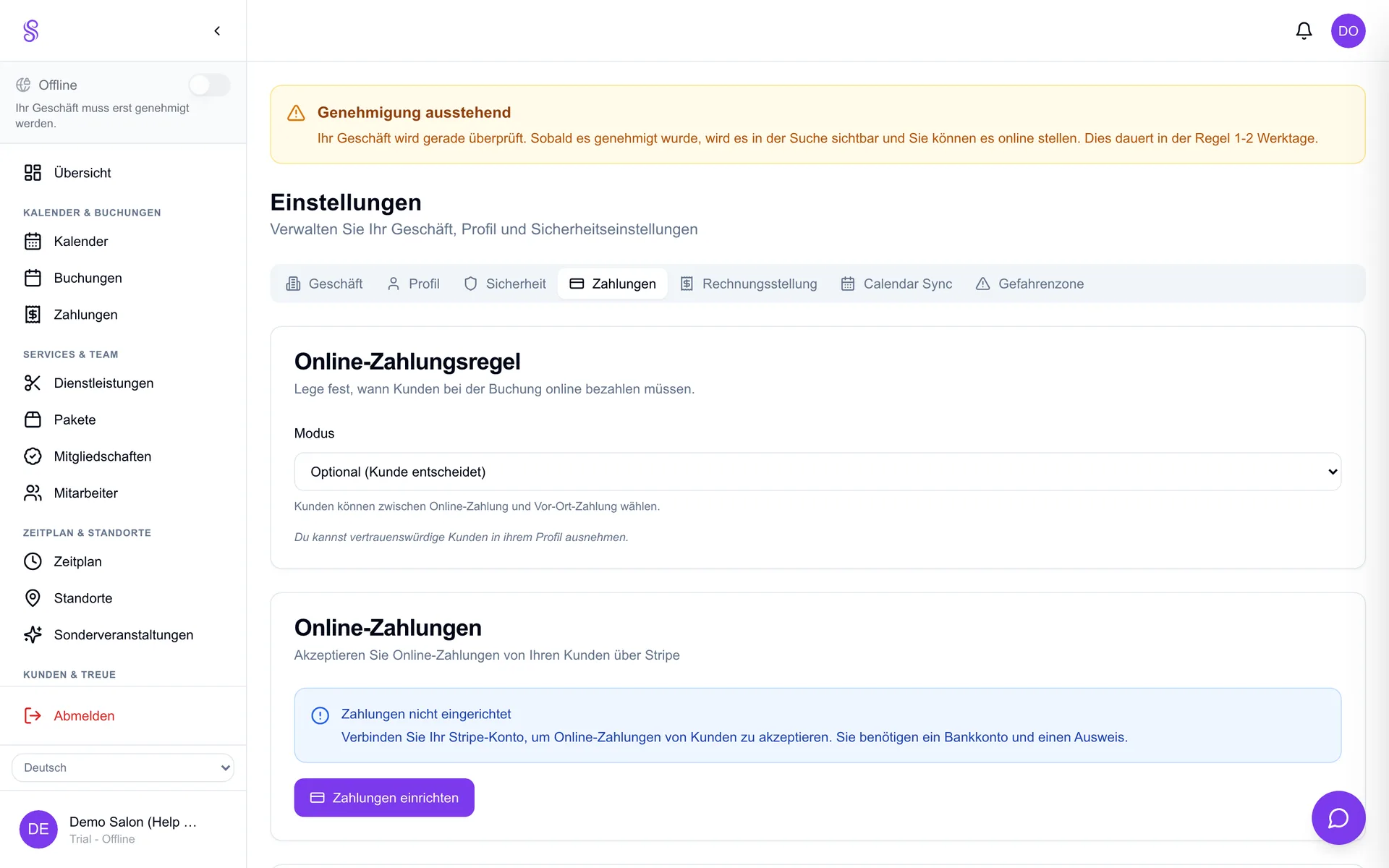
Open Settings → Payments
Scroll to the Online payment section below the Salonify Payments status.
- 3
Turn Online payment on
Flip the toggle. Your public booking page will now show a card-payment step at checkout.
- 4
Choose optional or required
Optional lets the customer pay now or at the salon. Required only confirms the booking once the card payment (or deposit) succeeds — the strongest protection against no-shows.
Good to know
- Optional: the customer may pay now or at the salon.
- Required: the booking is only confirmed once payment succeeds.
- Pair 'required' with per-service deposits for high-value treatments.